Using the dashboard
The dashboard has two views of the same house:
| View | Opened from | Pages |
|---|---|---|
| Homeowner view | The Share with homeowner link or QR code | Overview, Alerts, Energy |
| Installer view | OPEN DASHBOARD in the driver's setup | Overview, Alerts, Energy, System, Settings |
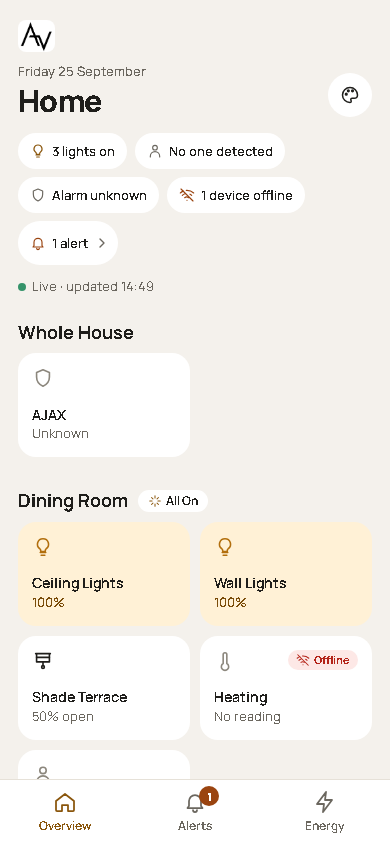
The homeowner view hides the installer's tools. It doesn't restrict access: anyone on the home network with the installer link can open the installer view.
The dashboard updates by itself every few seconds while it's open, and pauses while the browser tab is hidden. It shows the house and doesn't control it.
How each page looks depends on the chosen style. The content is the same in every style.
This page covers the standard pages. You can also build your own pages from cards: see Custom dashboards and wall tablets.
Overview
The summary
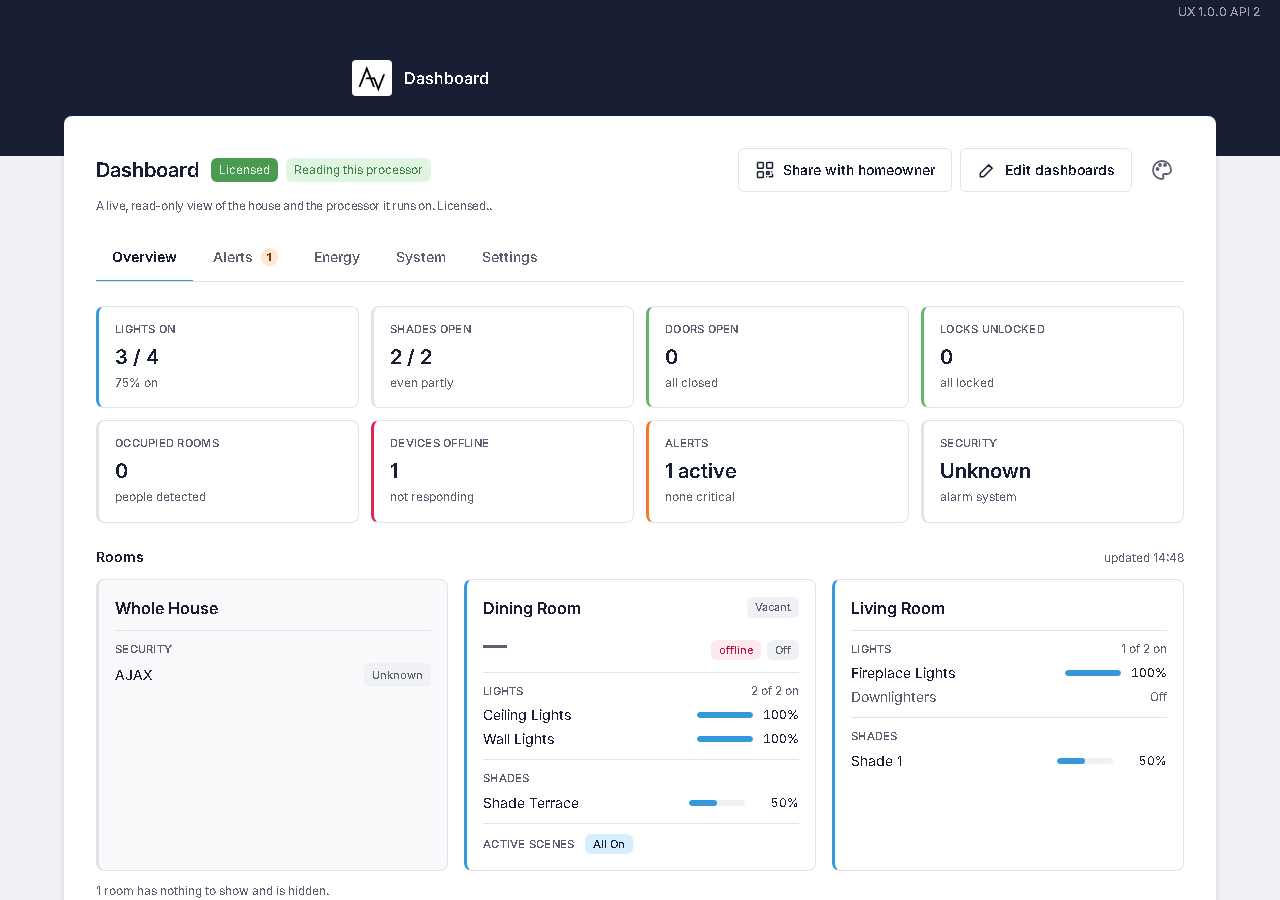
At the top, the summary covers the whole house, or the chosen rooms when a room filter is on:
| Item | Shows |
|---|---|
| Lights on | How many lights are on, out of all the lights. |
| Shades open | How many shades are open. Any position above fully closed counts as open. |
| Doors open | How many door sensors report open. |
| Locks unlocked | How many locks report unlocked. See Locks. |
| Occupied rooms | How many rooms an occupancy sensor reports as occupied. |
| Devices offline | How many devices report that they're offline. |
| Alerts | Active alerts, and how many are critical. |
| Security | The state of the security system, where its driver reports one. |
Rooms
Each room shows what's in it:
| Section | Shows |
|---|---|
| Temperature | The current temperature, the heating or cooling mode, and the setpoints. |
| Lights | Each light, whether it's on, and its level for a dimmer. |
| Shades | Each shade's position, or Closed. |
| Doors | Each door sensor (Open or Closed, and low battery when it applies) and each lock. |
| Media | Whether the room's audio or video is on, the source and the volume. |
| Light level | Readings from light sensors in the room. |
| Active scenes | Scenes in the room that are active now. |
The room's occupancy appears next to its name. Rooms with nothing to show are hidden.
When a device hasn't reported a value, the dashboard shows it as unknown. Offline devices carry an offline label.
If the dashboard can't read the house, a banner at the top says so, and the values below it are the last ones it received.
Locks
Locks that Crestron Home reports directly show Locked or Unlocked.
Locks added by another driver, such as LCD's 2N Lock, appear through their Lock and Unlock scenes. For these the dashboard shows Locked when the lock scene is active, and Not confirmed locked otherwise. In the installer view their names end in (via scene). See Limitations.
Alerts
Active alerts and history
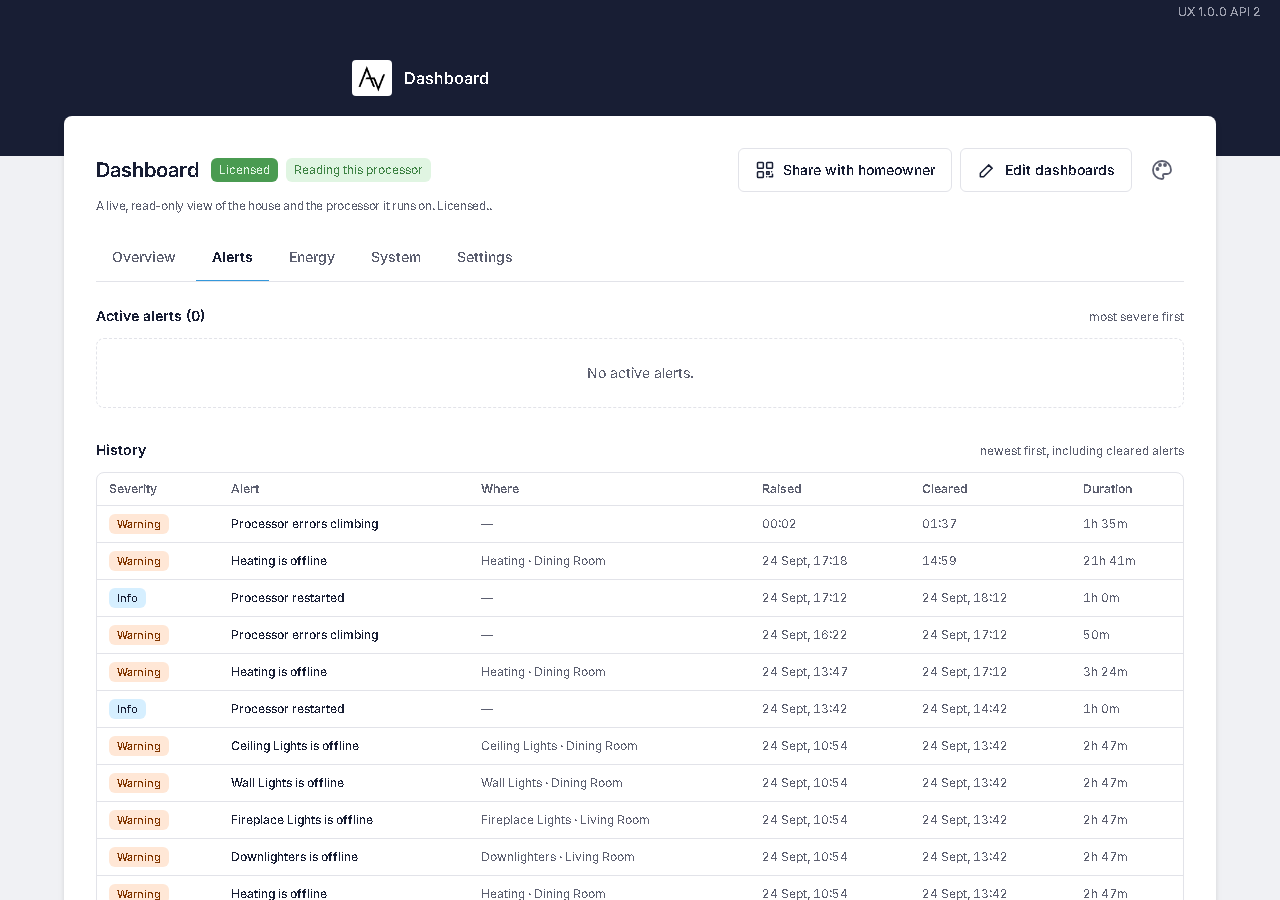
Active alerts lists what needs attention now, most severe first. Each alert has a title and a line of detail, for example "Front Door left open: Front Door in Hallway has been open for 12 minutes.", with the room, when it started and how long it has lasted.
An alert clears when the condition ends, for example when the door closes or the device comes back online.
History lists alerts newest first, including cleared ones, with when each started and cleared. The dashboard keeps 90 days of alert history.
| Severity | Used for |
|---|---|
| Critical | Security alarm, fire alarm, and the dashboard being unable to read the house. |
| Info | The processor restarted. |
| Warning | All other alerts. |
With a room filter on, alerts for other rooms are hidden. Alerts that concern the whole house, such as a security alarm or the processor, always show.
Snoozing and dismissing an alert
Each active alert has Snooze and Dismiss buttons, in both views.
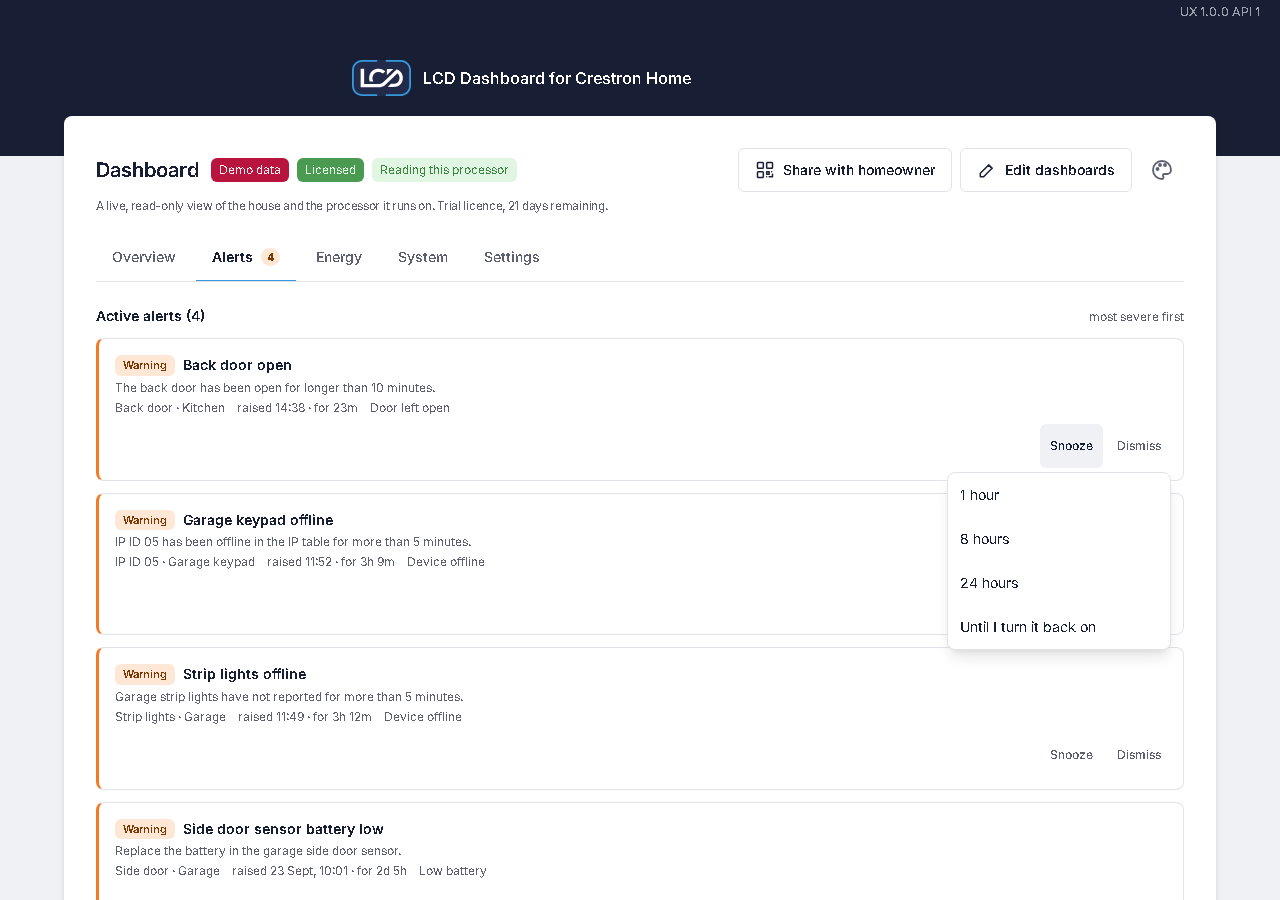
- Snooze hides the alert for 1 hour, 8 hours, 24 hours or Until I turn it back on. Snoozed alerts move to a Snoozed list, which says when each comes back. Un-snooze brings one back now. If the condition is still there when the snooze ends, the alert returns and its Crestron Home event fires again. If the condition clears first, the snooze ends with it.
- Dismiss takes the alert off the active list. It stays in History, marked as dismissed. If the condition clears and happens again later, a new alert is raised.
Snoozed and dismissed alerts aren't counted in the summary and don't fire their Crestron Home event. The driver stores them, so they apply on every device and after a restart.
Alert settings
In the installer view, Alert settings at the bottom of the Alerts page lists every alert. Switch each one on or off, set its threshold where it has one, and select Save alert settings.
| Alert | Raised when | On by default | Threshold (default) |
|---|---|---|---|
| Door left open | A door sensor has been open for longer than the threshold. | Yes | 10 minutes (1–1440) |
| Lock left unlocked | A lock that Crestron Home reports directly has been unlocked for longer than the threshold. | No | 30 minutes (1–1440) |
| Security alarm | The security system is in alarm. | Yes | None |
| Fire alarm | The security system reports fire. | Yes | None |
| Device offline | A light, shade, lock, sensor, thermostat or security device has been offline for longer than the threshold. | Yes | 5 minutes (1–1440) |
| Low battery | A sensor reports a low battery. | Yes | None |
| Processor restarted | The Crestron Home processor restarted. Clears after an hour. | Yes | None |
| Errors climbing | The processor logged at least 3 new errors within 15 minutes. Waits 30 minutes after a restart. Clears after an hour without a rise. | Yes | None |
| CPU high | Processor load was at or above the threshold for three readings in a row, about three minutes. | Yes | 85% |
| Memory high | Processor memory use was at or above the threshold for three readings in a row. | Yes | 90% |
| Storage low | Free storage on the processor is below the threshold. | Yes | 10% free |
| API unreachable | The dashboard can't read the house because the Web API is off or has stopped answering. | Yes | None |
The security system's entry delay, when someone comes in, is normal behaviour and doesn't raise an alert. Security alarm is raised when the system goes into alarm.
The dashboard times each condition even while its alert is off. If you switch on Lock left unlocked while a lock has been unlocked for an hour, the alert is raised at once. Switching an alert off clears its active alerts.
The security alerts and the lock alert depend on what other drivers report. See Limitations.
Using alerts in Crestron Home sequences
Each kind of alert is also a Crestron Home event. Use it to turn on the hall lights when a door is left open, send a notification for a low battery, or run a scene when the system goes into alarm.
The event fires when an alert starts. It doesn't fire when the alert clears. Two doors left open fire the event twice. An alert that's switched off in Alert settings, snoozed or dismissed doesn't fire its event.
| Event | Fires when |
|---|---|
Alert: door open too long (AlertDoorOpenTooLong) | A door is left open. |
Alert: lock unlocked too long (AlertLockUnlockedTooLong) | A lock is left unlocked. |
Alert: security alarm (AlertSecurityAlarm) | The security system goes into alarm. |
Alert: security fire (AlertSecurityFire) | The security system reports fire. |
Alert: device offline (AlertDeviceOffline) | A device goes offline. |
Alert: battery low (AlertBatteryLow) | A sensor's battery is low. |
Alert: processor restarted (AlertProcessorRestarted) | The processor restarts. |
Alert: processor errors climbing (AlertErrorsClimbing) | The processor's error count is rising. |
Alert: processor CPU high (AlertCpuHigh) | Processor load is high. |
Alert: processor memory high (AlertMemoryHigh) | Processor memory use is high. |
Alert: processor storage low (AlertStorageLow) | The processor is running out of storage. |
Alert: processor API unreachable (AlertApiUnreachable) | The dashboard can't read the house. |
To use one:
- In the Crestron Home setup app, create or open a sequence.
- Choose the LCD Dashboard device's event as the trigger, for example Alert: door open too long.
- Add the actions you want, such as a scene, a light or a notification.
The alert events haven't yet been tested in Crestron Home programming on a processor. The event labels and the steps above may change.
Door left open fires after the threshold in Alert settings, so set the threshold to the delay you want.
Energy
The Energy page estimates how much energy the lighting uses and what it costs. It's in both views.
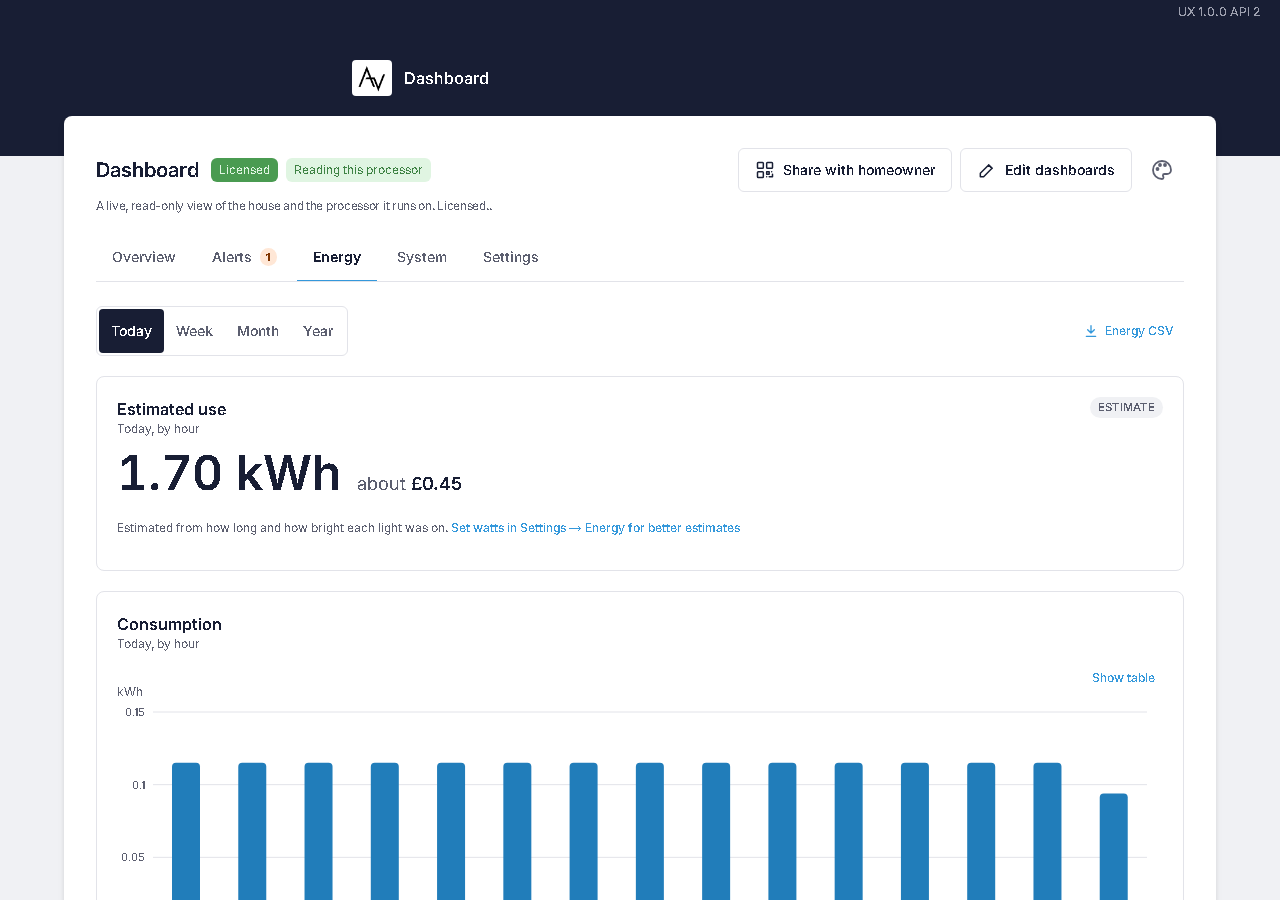 The installer sets it up in Settings → Energy.
Each light's estimated power is its watts multiplied by its dimmer level: a 50 W load at 40% counts as 20 W. A switched load counts as fully on or off. The dashboard records each change of level, so the figures cover the time it has been running. Loads without their own watts use a default of 20 W.
| Section | Shows |
|---|---|
| Estimated use | kWh for today, this week, this month or this year, and the cost when a tariff is set. It also shows how much of the period the dashboard was recording. |
| By room | Each room's share of the estimate. |
| Top loads | The ten loads that used the most, with their hours on. |
| Lights left on | Lights left on in a room its occupancy sensors report as empty for at least 15 minutes, or on through the night (01:00 to 05:00). |
| Temperature | Each thermostat's temperature and setpoint over 24 hours, 7 days or 30 days. |
| Occupancy | For rooms with occupancy sensors, how often each room is occupied by day of the week and hour. |
A room filter applies here too: with one on, every figure covers the chosen rooms only.
Select Energy CSV, or CSV on the Temperature and Occupancy sections, to download the figures as a spreadsheet file. Download them before a processor replacement or restore, because Crestron Home backups don't include them.
The Energy page starts empty and fills in as the lights are used.
System
The System page is in the installer view. It shows how the Crestron Home processor is doing and checks what the dashboard needs.
Health
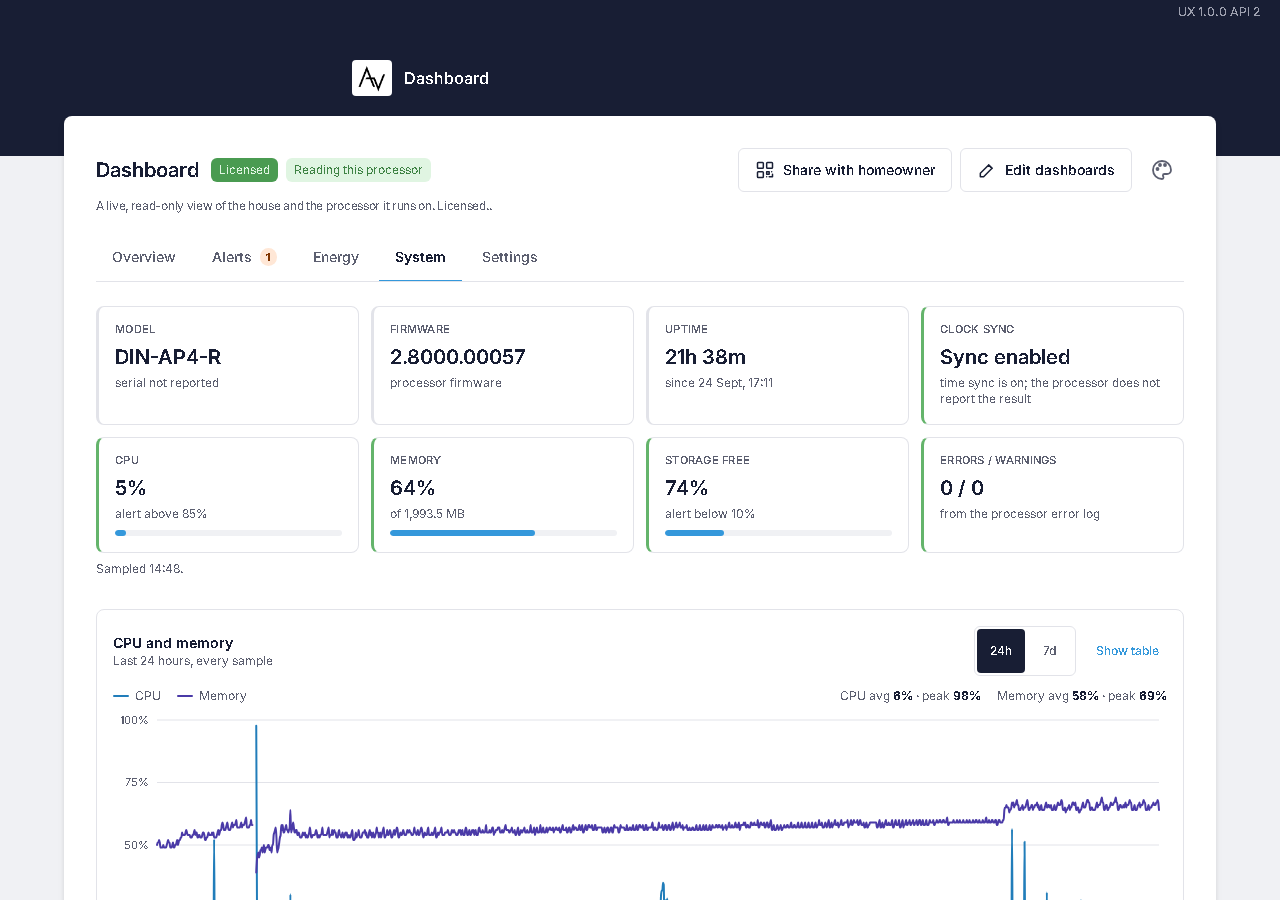
| Tile | Shows |
|---|---|
| Model | The processor model and serial number. |
| Firmware | The processor firmware version. |
| Uptime | How long since the processor last started. |
| Clock sync | Whether time sync is switched on. |
| CPU | Processor load, and the level for CPU high. |
| Memory | Memory in use, out of the total. |
| Storage free | Free storage, and the level for Storage low. |
| Errors / warnings | Counts from the processor's error log. |
Below the tiles, a chart shows processor load and memory for the last 24h (every reading) or 7d (hourly averages and peaks).
Console commands
Console command health lists the read-only diagnostic commands the dashboard runs, whether each one ran and could be read, how long it took, and when it last ran. If a command's output couldn't be read, the raw output is kept here to send to LCD support.
Run a console command runs one command from a fixed list and shows its output:
| Button | Shows |
|---|---|
taskstat | Running processes. |
errlog | The current error log. |
ver | Processor model, firmware and serial number. |
autodiscover | Crestron devices found on the network. This can take 15 seconds or more. |
Troubleshooter
Select Run all checks. Each check reports Pass, Check, Failed or Skipped, with a fix for anything that needs one.
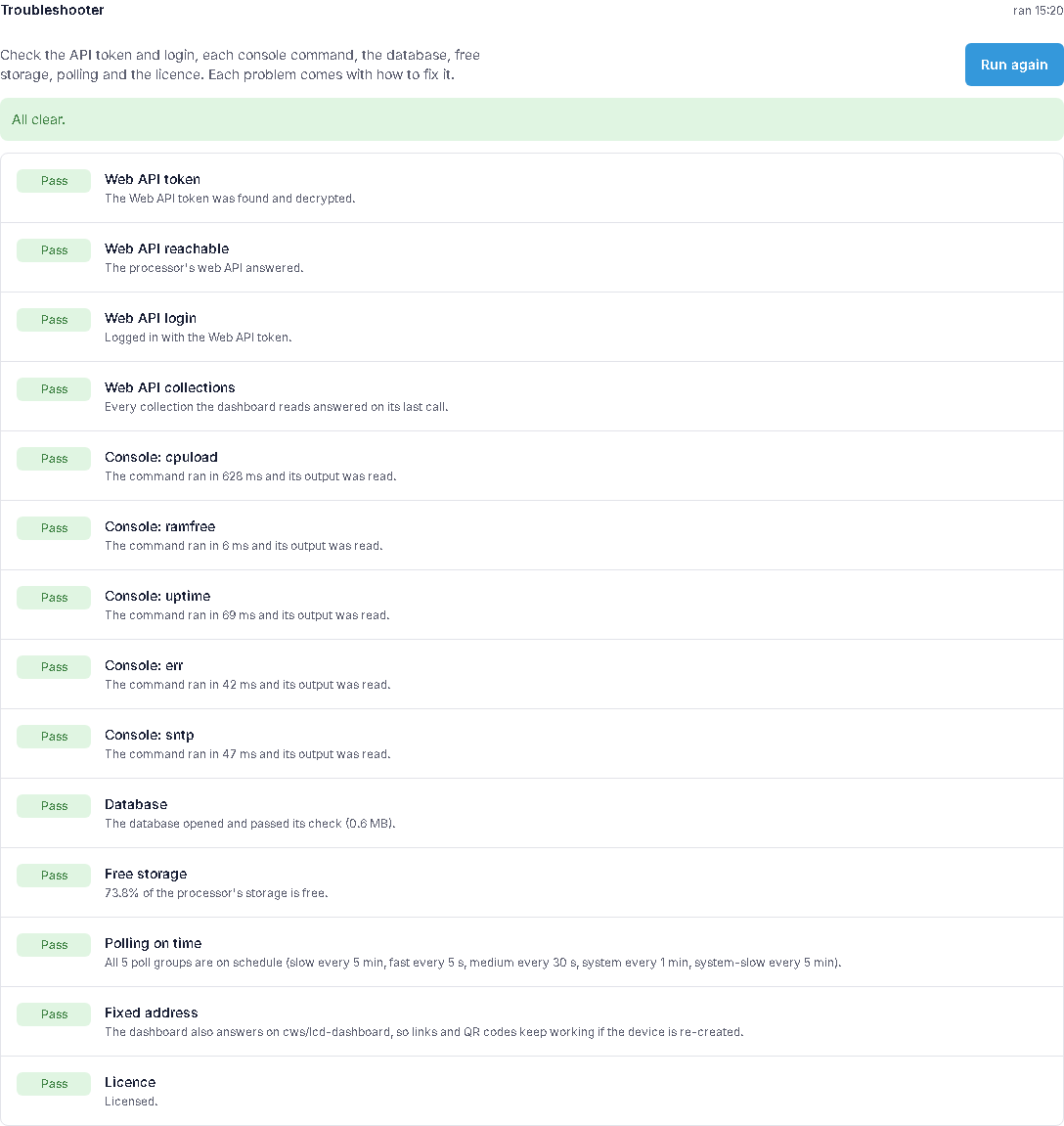
| Check | Confirms |
|---|---|
| Web API token | The driver found the Web API token. |
| Web API reachable | The Web API answers. |
| Web API login | The Web API accepts the token. |
| Web API collections | Each kind of device can be read. It warns when one keeps failing, for example security panel state. |
| Console: command | Each diagnostic command runs and can be read. |
| Database | The dashboard's history store is healthy. |
| Free storage | The processor has enough free storage. |
| Polling on time | The dashboard is keeping up with reading the house. |
| Fixed address | The dashboard answers on its fixed address. |
| Licence | The driver is licensed. |
A check that needs an earlier one is Skipped until that one passes. Fix the first failure, then run the checks again.
At the foot of the page are the driver version, when the house was last read, and the size of the history store.